
This article will take you through the steps to follow when someone says, “Citrix Server logons are too slow.”
Understanding the Terminal Server Logon Process
The logon process in Terminal Server environments is interesting, especially since it doesn’t necessarily relate to the usability and overall feel of the server in general. A series of events happen on a Terminal Server from the time a user clicks the “connect” button until the time his application or desktop is presented to him. In order to successfully troubleshoot slow logons, you need to fully understand what happens during the logon process. Only then can you begin to investigate which aspect of the logon process is holding things up.
From a high level, this sequence of events occurs when a user logs on to a Terminal Server:
- The user clicks the connect button.
- A request is made to determine which server the user should connect to.
- The server negotiates with the requesting client for its encryption level and virtual channel capabilities.
- The Microsoft licenses are verified. The server client access license is verified first, and then the Terminal Server client access license is verified.
- The user is authenticated to the domain and his rights are checked for access to the connection.
- The Citrix licenses are verified.
- The Terminal Server loads the user profile.
• First, it contacts the logon server (domain controller) to see if a roaming profile is configured for the user.
• If so, the server checks to see if a local profile exists.
• If so, it checks the see which is newer.
• If the remote copy of the roaming profile is newer, the server copies the roaming profile from the remote server. - The Terminal Server applies any GPOs that have been configured.
• The server connects back to the logon server to check for any GPOs for the user.
• If so, the server downloads those GPOs.
• Then, it applies the GPOs.
• The Terminal Server checks GPO filtering, recursion, etc.
• It then processes each GPO extension, such as folder redirection, security policy, disk quota, etc. - The Terminal Server launches any applications as specified in the policies.
- The server executes the contents of the “run” registry values.
- The server runs the user’s logon script(s).
- The server runs any programs in the Startup folder of the user’s Start Menu.
This list is just a very high level and has been greatly simplified for presentation here. The important takeaway is that all of these steps take place each time a user logs on.
Now that you’ve seen what happens (or could potentially happen) each time a user logs on, you can start to trace this process in your environment to see where the delay could be. Here’s the approach:
- Isolate the Problem
- Check the pre-connection items
- Check the initial user environment creation
- Check the shell and session creation
Isolating the Problem
Before you can really start troubleshooting the logon process, you should get a feel for the situations in which slow logons occur. To do this, collect as much information about the symptoms of the problem as you can. Some potential questions to ask include:
- Are logons slow for some users or all users?
- If you’re using Citrix, does a user with a slow logon via ICA also experience a slow logon via RDP?
- What happens if a user with a slow logon logs in via the server console?
- Are logons slow at all times of the day, or just sometimes?
- Do users experience slow logons every time, or is it sporadic?
- Is there anything else that the slow logon users have in common? (Are they all in the same domain group or OU? Are they all in the same building? Do they all have the same type of client device or desktop image? Are they all accountants?)
- Or is it just plain slow for everyone?
Answering these questions will help you frame your investigation. For example, if you determine that slow logons only occur via ICA and not via RDP sessions, then you’ll be able to focus your efforts on the ICA session startup process.
Once you’ve determined what common characteristics are in place for users with slow logons, you can begin to investigate more closely. The easiest way to do this is to use the Citrix Web Interface and log on as a user that’s experiencing slow logons. To do this, first get a stopwatch and time the entire logon process–from the moment you click an application icon in Web Interface until the moment the desktop shell or application is fully loaded. That will give you your total logon target. Then you can narrow this down by breaking the logon process down into four chunks:
- User clicks an icon in Web Interface, causing the server to build a custom ICA file and sends it to the client
- Client receives ICA file and establishes connection
- User is authenticated and their environment is loaded
- Post shell loading actions take place
Logon Phase 1: Server Selection
The first part of the logon process actually happens before a user ever hits a Terminal Server. This could be called “server selection.” This phase is when the user sends their application request to the server, and the zone data collector selects the appropriate server and sends the server information to the client.
If you’re using Citrix’s Web Interface, it’s easy to figure out how long this process takes. Instead of double-clicking on an icon to launch an application, right-click the icon and select “Save as…” to save it to your desktop. This will save a file called launch.ica that will contain all the results of the server selection process. If that file is created very quickly, then you know you do not have a problem at this stage of the logon. If that file takes a while to be created, then you can focus your investigation on the pre-connection issues (name resolution, data collector latency, etc.).
Logon Phase 2: Server Connection
The next phase of the logon process is the actual connection with the server itself. You can launch immediately into this phase by double-clicking the launch.ica file on your desktop that was created in the previous step. However, before you do this, you should edit the launch.ica file in notepad to remove the Web Interface user credentials / ticket information. Why? Because doing so will cause the automatic logon to fail, thus stopping the logon process dead in it’s tracks at the remote Citrix server logon screen. This is a good thing, because it allows us to time the activities that take place between double-clicking launch.ica and the Windows logon box appearing on the screen. By deleting the user credentials out of the ICA file, we essentially create a breakpoint in the logon flow.
This phase is where the initial session connection and Microsoft license verification takes place, so you can check into these areas if this is the slow point.
Logon Phase 3: Authentication and User Environment Creation
At this point you should be sitting at the Windows logon box on your remote server. Go ahead a log on a see how long the process takes. If the desktop (or published application) takes a long time to load, there are actually several things that could cause it. Maybe you have a huge roaming profile? Maybe there are two many GPOs being applied?
In Windows 2000 and Windows Server 2003, an application called “userenv.dll” is responsible for creating the entire user environment at logon time. This includes loading user profiles and applying GPOs.
Fortunately, you can enable diagnostic trace logging on all actions that the userenv.dll file conducts. These trace logs are extremely detailed, describing down to the millisecond exactly what the server was doing. For example, in addition to being able to trace the high-level logon process outlined previously, you can also see the userenv.dll verifying the profile file list build, checking for disk space, verifying ntuser.dat, loading ntuser.dat into HKCU, and replacing system variables in the path with actual variables.
By viewing this log you will see if a particular file in the roaming profile is getting stuck, if the file copy process is taking too long, or if DNS or WINS name resolution is holding the server up. It also allows you to track the application of GPOs to see if one is taking an inordinate amount of time (or if you simply have too many GPOs that are slowing things down).
This log file can help you pinpoint slow logon issues related to things you might not have thought of otherwise. For example, one environment was experiencing slow logons due to the domain controller. The IT staff had been focusing their attention on the path between the Terminal Server and the file server hosting the master copies of the user profiles. But by looking at the userenv.dll logs, they discovered that the domain controller was so busy that it was taking 30-45 seconds to respond when the Terminal Server queried it to see where the user’s roaming profile was stored. A $3,000 hardware upgrade to the domain controller saved this company 45 seconds on every user logon across 20 Terminal Servers.
You can enable userenv.dll logging by adding the following registry entry to a Terminal Server:
Key: HKLM\Software\Microsoft\Windows NT\CurrentVersion\Winlogon
Value: UserEnvDebugLevel
Type: REG_DWORD
Data: 10002 (Hex)
The data value of 10002 will enable verbose logging to a file on the server. Once you set this value, reboot your server and check for a “userenv.log” file in the %SystemRoot%\Debug\UserMode\ folder. Remember to turn this off when you’re done troubleshooting it, since each user logon can easily add 100KB to the size of this log file.
Let’s look at a small example from a userenv.log file. This example has been severely trimmed, and shows only a few random lines to give you a feel for the type of information that is available in this log file. Notice that the exact time down to the millisecond is listed for every line in this log. This allows you to see exactly what’s happening and where the hold-up could be.
09:25:30:606 UnloadUserProfile: Entering, hProfile =
09:25:30:606 UnloadUserProfile: In console winlogon process
09:25:30:616 UnloadUserProfileP: Entering, hProfile =
09:25:30:616 CSyncManager::EnterLock
09:25:30:616 CSyncManager::EnterLock: No existing entry found
09:25:30:616 CSyncManager::EnterLock: New entry created
09:25:30:616 CHashTable::HashAdd: S-1-5-21-2364083253-1420309831-852573094-500 added in bucket 19
09:25:30:616 UnloadUserProfileP: Wait succeeded. In critical section.
09:25:30:872 MyRegUnLoadKey: Returning 1.
09:25:30:872 UnloadUserProfileP: Succesfully unloaded profile
is local, not setting preference key
09:27:39:975 CreateLocalProfileImage: One way or another we haven’t got an existing local profile, try and create one
09:27:39:975 CreateSecureDirectory: Entering with
09:27:40:052 CreateSecureDirectory: Created the directory
09:27:40:052 ComputeLocalProfileName: generated the profile directory
09:27:42:068 CopyProfileDirectoryEx: Leaving with a return value of 1
09:27:42:106 MyRegLoadKey: Returning 00000000
09:27:42:106 IssueDefaultProfile: Leaving successfully
09:27:42:115 RestoreUserProfile: Successfully setup the local default.
09:27:42:115 SetupNewHive: Entering
09:27:42:115 SetDefaultUserHiveSecurity: Entering
09:27:42:335 SecureUserKey: Entering
09:27:42:335 SecureUserKey: Leaving with a return value of 1
09:27:42:335 SecureUserKey: Entering
09:27:42:345 SecureUserKey: Leaving with a return value of 1
09:27:49:719 ProcessGPOs: ———————–
09:27:49:719 ProcessGPOs: Processing extension Microsoft Disk Quota
09:27:49:719 CompareGPOLists: The lists are the same.
09:27:49:719 ProcessGPOs: Extension Microsoft Disk Quota skipped with flags 0x6.
09:27:49:719 ProcessGPOs: ———————–
09:27:49:719 ProcessGPOs: Processing extension QoS Packet Scheduler
09:27:49:719 CompareGPOLists: The lists are the same.
09:27:49:719 ProcessGPOs: Extension QoS Packet Scheduler skipped with flags 0x6.
09:27:49:719 ProcessGPOs: ———————–
09:27:49:729 ProcessGPOs: Processing extension Scripts
09:27:49:729 CompareGPOLists: The lists are the same.
09:27:49:729 ProcessGPOs: Extension Scripts skipped because both deleted and changed GPO lists are empty.
09:27:49:862 ProcessGPOs: User Group Policy has been applied.
09:27:49:862 ProcessGPOs: Leaving with 1.
09:27:49:872 ApplyGroupPolicy: Leaving successfully.
09:27:51:763 IsSyncForegroundPolicyRefresh: Synchronous, Reason: policy set to SYNC
09:27:52:700 LibMain: Process Name: C:\WINDOWS\system32\userinit.exe
09:27:53:139 GPOThread: Next refresh will happen in 109 minutes
09:27:57:926 LibMain: Process Name: C:\WINDOWS\system32\ie4uinit.exe
09:28:40:507 LibMain: Process Name: C:\WINDOWS\system32\msiexec.exe
09:28:47:967 LibMain: Process Name: C:\WINDOWS\system32\userinit.exe
Once you have this log file, take a quick look at the first and last timestamps. If they’re very close together (like only a few seconds apart), then you know that it’s probably not worth spending too much time with this logfile. However, if you have 10, 20, or even 30 seconds in this file, then you can read through it to figure out where the holdup is.
Logon Phase 4: Loading all the Junk
There is a lot of stuff that gets loaded into a Windows session, even when Terminal Server is used. If you still haven’t found the cause of your slow logons, you need to investigate everything else that’s loading during the session initiation. I used to give out a long list of registry locations, but fortunately there are now tools that do this for us. My favorite is the free tool
AutoRuns is a simple tool that you run on a computer (or your Citrix server in this case) that scans the registry to list out absolutely everything that runs, loads, or is mounted in a session. It’s like an extreme version of MSConfig. Here’s a sample output:
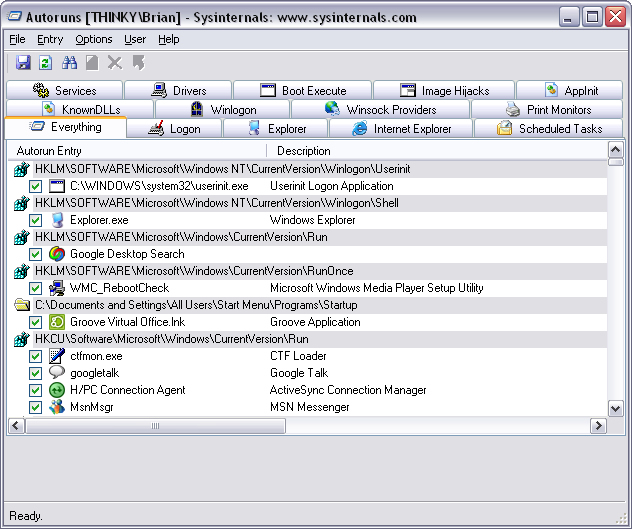
AutoRuns from SysInternals
As you can see from the size of the scrollbar, AutoRuns will find hundreds of modules and components that load on startup. Of course you can’t remote everything from this list, but you can step through it to get an idea of what’s loading. You might be very surprised at what you find! You can also use this tool to remove items from these lists to try your logons without them.
Conclusion
Troubleshooting Citrix and Terminal Server slow logons is easy once you know the process and know how to insert break points to narrow down where the problem might be. Try to isolate it as much as possible and you should be able to solve it


 MyXenApp