Difference between Machine Creation Services and Provisioning Services

XenDesktop 5 has two different features to provide single image management i.e., Machine Creation Services and Provisioning Services.

Machine Creation Services can only provide hosted VDI desktops (pooled or dedicated).
If we want to utilize a hosted shared desktop model, a streamed VHD model or a Hosted VDI model then we would require Provisioning Services.

MCS uses built-in technology to provide each desktop with an unique identity and also thin provisions each desktop from a master image. Only changes made to the desktop consume additional disk space

PVS uses built-in technology to provide each desktop with a unique identity, but also utilizes a complete copy of the base desktop image in read/write mode. Each copy consumes disk space, which also increases as additional items are added to the desktop image by the user.

Posted in Citrix XenApp | Tagged , , | Leave a comment

Future of XenApp, XenDesktop 7 and App-V

Citrix XenDesktop 7 and XenApp 6.5 Feature Pack 1 will ship in June 2013. Citrix released XenDesktop 7 this May 2013, that combines XenApp and other virtual desktop infrastructure (VDI) technologies to deliver Windows apps and desktops to mobile devices from a cloud architecture. Citrix VDI administrators will finally get the unified XenDesktop and XenApp management and deployment model in one console. From this release management and deployment of XenDesktop and XenApp are running on the FlexCast Management Architecture (XenApp previously ran on the IMA- Independent Management Architecture).

Citrix has brought down the number of management consoles from about 20 to just two. Citrix Studio for overall management and Citrix Director for monitoring. Director combines performance monitoring, reporting, real-time assessment and troubleshooting, plus network metrics so help desk staff can view users’ usage details, such as latency.

XenDesktop 7 supports Windows Server 2012 and Windows 8, and it separates the management layer from the OS, allowing IT to deploy multiple different servers alongside each other. For instance, administrators can now manage Windows 7 and 8, Windows Server 2008 R2 and 2012 servers in a single farm. That can reduce the number of servers required for XenDesktop

Citrix has given up on Application Streaming now, (Citrix first added support for App-V in XenApp 6 in 2010) because of the changes in Windows Server 2012 and Windows 8 that would have required a complete rewrite of XenApp to support the app streaming component. But Citrix did not mention that the Application Streaming feature in XenApp will no longer be supported once customers migrate to Windows Server 2012. But XenDesktop 7 will have Citrix’s application migration software AppDNA, to help migrate to App-V

App-V is Microsoft’s application virtualization technology which competes with VMware’s ThinApp and Citrix’s XenApp streaming capabilities

There are many reasons for App-V 5 to be the part of XenApp or RDS environment:

1. Microsoft App-V 5 is free of use on Citrix XenApp / Microsoft RDS
2. App-V 5 Shared Content Store is perfect for non persistent desktops
3. Deploy App-V 5 apps with SCCM 2012, PowerShell, GPO or as stand alone
4. Run multiple versions of the same application on the same server. No need for silos (AIE)
5. Run the same App-V 5 package on various platforms

Citrix disclosed details of XenApp 6.5 Feature Pack 1, which adds graphic processing unit sharing for HDX 3D Pro (GPU is a computer chip that performs primarily for the purpose of rendering images), improved local app integration and automated physical-to-virtual migration through AppDNA.

Posted in Citrix XenApp | Leave a comment

ICA port not responding or Protocol Driver Error

Unable to connect to the CGP tunnel destination
Citrix users are receiving an error on login: Protocol Driver Error

Event ID 118
The Citrix server is reporting a number of Event ID: 118 errors.
Unable to connect to the CGP tunnel destination (127.1.1.1:1494)

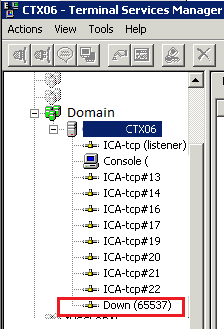
Open the Terminal Services Manager and check for disconnected listeners.
The ICA Listener may be down (disconnected).
Resetting the listener resolved the issue.

1

Citrix ICA Not Listening On Port 1494 (The same may happens to RDP listener)

Known issues with this security update:
After you install this security update on a Windows Server 2003 SP2-based terminal server, Remote Desktop Protocol (RDP) clients or Independent Computing Architecture (ICA) clients may be unable to connect to the terminal server. To resolve this problem, install hotfix 958476

The following instructions correct the issue until the hotfix can be applied:

1. Identify that ICA is not listening on port 1494.
netstat -an | findstr 1494

2. Open the Terminal Services MMC
tscc.msc

3. Disable ICA and then Enable ICA
Run netstat again to verify ICA is listening on port 1494.

Posted in Citrix XenApp | Tagged , , , , , | Leave a comment

Create scheduled server reboot policy in XenApp 6.5

1.  Create the Worker Groups
2.  Add Servers to the Worker groups
3.  Create the Citrix Policies
4.  Select Reboot Logon Disable Time and click Add.
5.  Select Reboot Schedule Frequency and click Add.
6.  Select Reboot Schedule Start Date and click Add.
7.  Select Reboot Schedule Time and click Add.
8.  Select Scheduled Reboots and click Add.
9.  Add this policy to Worker Group, been created before.
10. Check Allow and Enable this filter element
11. Check Enable this policy and Save.
12. From a command prompt on one of the XenApp servers, type: gpupdate /force.

Policies created with the Group Policy Management Console are stored in Active Directory and are propagated to XenApp servers using group policy processing. Policies created with the Delivery Services Console are stored in the XenApp data store and are propagated to XenApp servers by the Citrix IMA service. Policy settings are stored in the registry on each XenApp server. The Citrix Group Policy Modeling Wizard can be used to verify policy settings through a resultant set of policies. Alternatively, you might verify the policy settings on the XenApp server using the registry editor.

Verify Policy Settings with Regedit:
HKEY_LOCAL_MACHINE/SOFTWARE/Policies/Citrix/IMA/Restart Options

The same settings are also stored under HKEY_LOCAL_MACHINE/SOFTWARE/Wow6432Node/Policies/Citrix/IMA/Restart Options

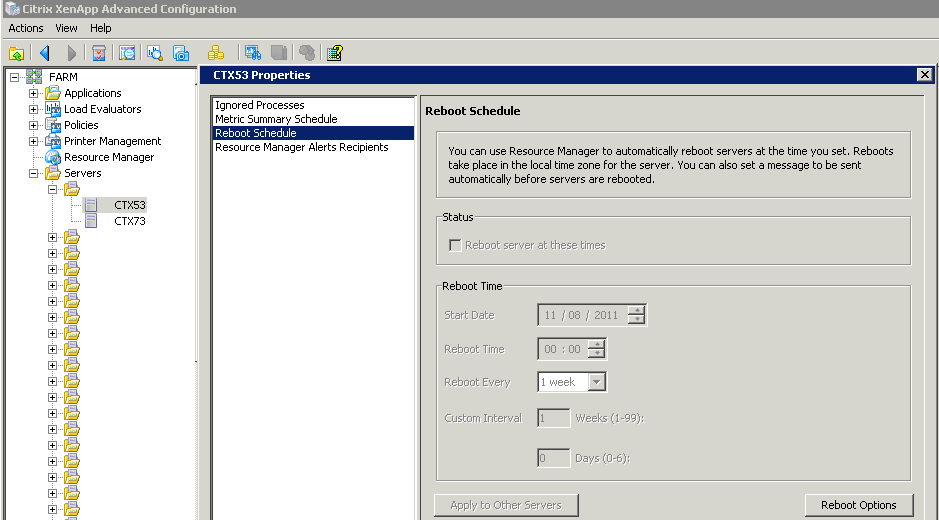
Schedule reboot in Citrix Presentation Server 4.5

Image

Schedule reboot in XenApp 5.0

Image

Posted in Citrix XenApp | Tagged , , , | Leave a comment