Difference in Client Drive Mapping between XenApp versions

Client Drive Mapping (CDM) on Presentation Server 4.5, XenApp 5.0 is now called Citrix Drive Mapping Redirector (CDMR) .

Presentation Server 4.5 and XenApp 5.0, use the method of ‘network mapping’ the local drive of the user. This method only map local drives, not the network drivers of the user machine. So to map the network drivers we need to use script with ‘net use‘ command and to locate the drives from \CLIENT. Also the administrator has to use a log off script to delete the drives when the users log off.

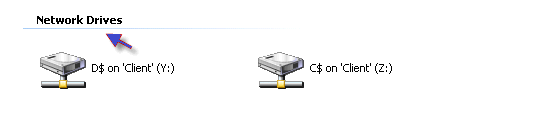
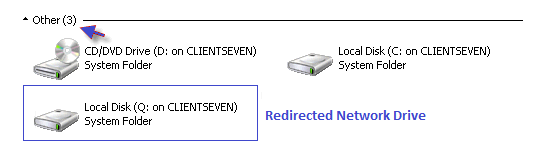
In XenApp 6.0, the CDM uses the concept of redirection. In a session the mapped drives are classified as Network Drives and the redirected drivers are classified as Other. The users need to modify the policy to allow redirection for network drives on the client’s system. The applications can not find the redirected drives while searching. So the users would require searching \CLIENT inside the session and map the desired drive manually or with the scripts.

The Q disk is a network drive being redirected and the drives are recognized as ‘Others’, because the drives are not mapped but redirected.

Here the drives are mapped and are recognized as ‘Network Drives’.

Posted in Citrix XenApp | Leave a comment

How to Mitigate Heartbleed Vulnerability in Citrix License Server

Citrix Security Advisory for CVE-2014-0160, aka the Heartbleed vulnerability.

The Citrix License Server version 11.10 of the License Administration Console and older are not vulnerable to ‘Heartbleed’.

The Citrix Web Service for Licensing replaces Citrix Simple License service in version v11.11.1. It handles calls from the Licensing Snap-in and performs the hands-free allocation and downloading of license files from http://www.citrix.com.

The Citrix License Server v11.11.1, the Citrix License Server VPX v11.12 and the Citrix Usage Collector are vulnerable to CVE-2014-0160. New versions of the License Server v11.11.1.13017 and the License Server VPX v11.12.14001 can be downloaded
from the Citrix website at the following address: https://www.citrix.com/downloads/licensing/license-server/license-server-version-11111-for-windows.html

The Citrix Usage Collector captures usage data and facilitates automated billing for Citrix Service Providers. This communicates with citrix.com

Citrix License Server Console uses the default Web service port 8082 and configured to use HTTP. If License Server administrators have configured this service to use HTTPS complete the following configuration steps:

On the License Administration Console, select “Administration” > “Server Configuration” > “Secure Web Server Configuration”, uncheck “Enable HTTPS”.
Uncheck the option, “Redirect non-secure web access to secure web access”, click save, restart the license server.

This will disable the port HTTPS on the License Server.

If the service “Citrix Web Services for Licensing” is present, set the startup to disabled and reboot the machine. Logon to the server as an Administrator and open a command prompt. Type the following commands:
> net stop citrixwebservicesforlicensing
> sc config citrixwebservicesforlicensing start=disabled

If the service “Citrix Simple License Service” is present, set the startup to disabled and reboot the machine. Logon to the server as an Administrator and open a command prompt. Type the following commands:
> net stop citrixsimplelicenseservice
> sc config citrixsimplelicenseservice start=disabled

The Citrix Licensing Administration Snap-in communicates with the Web Services for Licensing component over port 8083. Communication to the License Server over this port should be blocked in the Windows firewall. So the Citrix Studio will be
unable to administer licensing.

Posted in Citrix | Tagged , , , , , , , , , , , | Leave a comment

How to Install a SSL Certificate on a NetScaler

To create and install certificate log on to the NetScaler appliance as nsroot.
We can also copy or paste the CSR or server certificate to the /nsconfig/ssl directory on the NetScaler directly using any third-party file transfer utility such as WinSCP.

1. Create a Rivest, Shamir and Adleman (RSA) or Digital Signature Algorithm (DSA) key.
2. Create a Certificate Signing Request (CSR).
3. Send CSR to Certificate Authority (CA) and receive the server certificate from the CA.
4. Install server certificate on the required appliance.
5. Creating a Certificate-Key Pair.

Creating RSA Key

1. Select the SSL node.

nsssl1


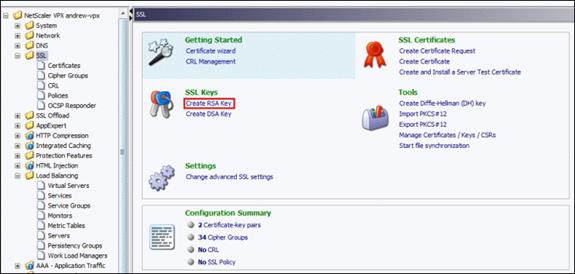
2. Click the Create RSA Key in SSL Key options on the SSL page.

nsssl2


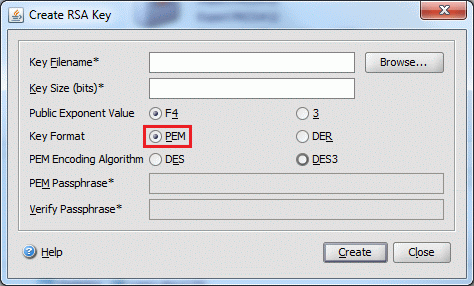
3. Specify the Key Filename and Key Size such as 1024 or 2048 bits.
4. Select the PEM key format.
5. Click Create and Close.

Creating a Certificate Signing Request (CSR)

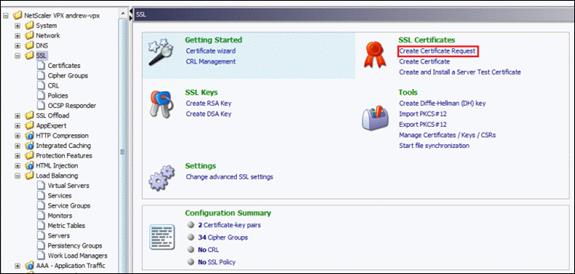
1. Select SSL node and click Create Certificate Request in the SSL Certificate option.
2. In Request File Name field, provide file name of the CSR file.

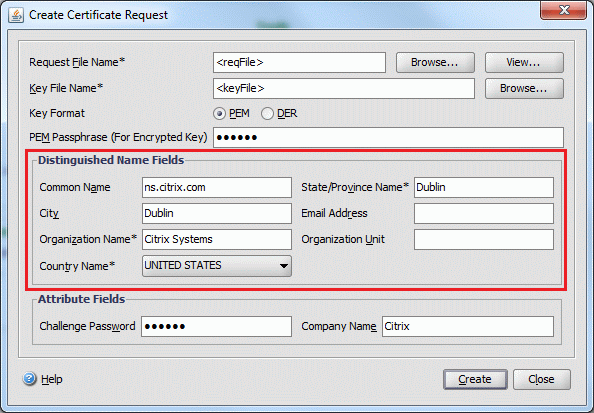
nsssl3


nsssl4


3. In the Key File Name field, specify the RSA Key we have created.
4. Select PEM Key format.
5. Give the company’s details in the Distinuished Name field.
6. Click Create and Close.
The file is created in the /nsconfig/ssl directory.

Installing the Server Certificate

1. Select the SSL node and click on the Manage Certificate/Keys/CSRs link.
2. Click Upload and select the server certificate.

Creating a Certificate-Key Pair

1. Expand the SSL node and select the Certificates.
2. On the Certificates page, click Add.

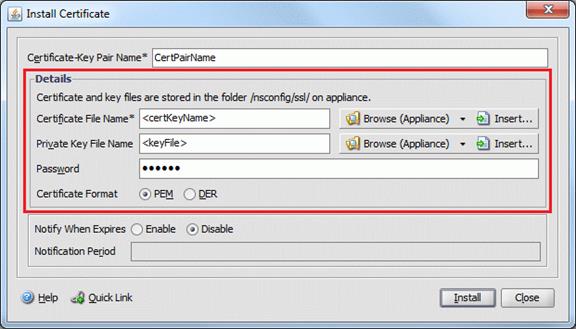
nsssl5


3. Specify the Certificate-Key Pair Name.
4. In the Details, specify the appropriate files names for the certificate and private key.
5. Select PEM format.
6. Click Install and Close.

Posted in Citrix | Tagged , , , , , , , | Leave a comment

Designing Citrix Environment

Data Collector
XenApp member servers replicate their dynamic data to the Zone Data Collector designated for their zone. XenApp uses a star topology for replication among zones, each ZDC replicates all of its zone dynamic data to all other ZDCs in the farm. Thus, it is important to design zones so that there is adequate bandwidth among ZDCs.

When designing zones, the most important variables to consider are latency and bandwidth. If organization has branch offices with low bandwidth or unreliable connectivity, do not place those branch offices in their own zone. Instead, group them with other sites with which they have the best network connectivity. When combined with other zones, this might form a hub-and-spoke zone configuration.

Citrix recommends to have only one zone in a farm unless it has servers in geographically distributed sites. In large environment with data centers on different continents, grouping geographically-related servers in zones can improve farm performance. Citrix does not recommend exceeding 5 zones and max number of zones can be created is limited to 20.
The hardware resources of all data collectors in the farm are sized to accommodate the largest zone. Since data collectors must manage the global state of the farm, they require the same processing capability of the other data collectors in the farm regardless of the size of their particular zone.

The average user session consumes approx 1.6 KB of memory on the data collector. The average server consumes approx 210 KB of memory on the data collector.
Data collector will send an IMAPing every 60 seconds to ensure that the member server is still up and available to service user requests. Likewise, data collectors will perform an IMAPing to each other every 60 seconds to ensure the remote zones are still available.

If ZDC does not receive an update within the configured amount of time from a member server (default 1 minute) in its zone, it sends a ping (IMAPing) to the member server in question. This timeframe can be configured in:
HKEY_LOCAL_MACHINE\Software\Citrix\IMA\Runtime\KeepAliveInterval
If ZDC does not receive an update within the configured amount of time from a peer ZDC server, it does not continually ping the “lost” ZDC. It waits a default of 5 minutes, which is configurable in:
HKEY_LOCAL_MACHINE\Software\Citrix\IMA\Runtime\GatewayValidationInterval
Note: Reference http://support.citrix.com/article/CTX112525/

Data Store
During normal farm operation, each Citrix server access the data store every 30 minutes to ensure their LHC is current. During server startup, the IMA Service queries the data store for initialization to ensures the LHC is consistent with the data store. This is the most CPU-intensive action for the data store.
A Farm with 1000 servers, 1000 published applications, 100 worker groups and 10 load evaluators, the IMA data store size requirement will be approximately 500 MB.
License Server

The license server uses approximately 4.5KB of memory for every session license and 39KB of memory for every start-up license that is in-use. The license server is capable of processing 248 license check-out requests per second. Over the course of 30 minutes, a single license server would be able to handle 446,400 users login.

XenApp server establishes a static connection to the license server and checks out a Citrix startup license when it is brought online. It consumes 1.68 KB of bandwidth and occurs for every server in the farm. When users login, the XenApp server requests a license from the license server. It consumes 1.04 KB of bandwidth for a license check-out request or check-in request.
Every XenApp servers will contact the license server in every 5 minutes plus interval to ensure its availability and its called as heartbeat . It consumes 366 bytes of bandwidth for each server. The grace period of the License server is 720 Hrs.

Web Interface
Intel Xeon dual core 2.2 GHz server with 2GB of RAM and HyperThreading turned on can handle 9.2 user requests per second.

Active Directory
Worker groups and their memberships are cached in memory in every IMA service for performance. This results in an increase in memory consumption of 8 KB for every worker group in the farm.

When Citrix policies are managed from the AD domain group policy, the sequence of policy refresh and update is as follows:
1. Change is made on the GPMC
2. Within 1½ to 2 hours, member servers pull and apply updates
3. Every 3 hours, AD replication occurs between domain controllers
4. Within 1½ to 2 hours, remote member servers pull and apply updates

When Citrix policies are managed from the XenApp management console, the sequence of policy refresh and update is as follows:
1. Change is made in AppCenter Console
2. Member server writes the policy change to the DS and updates its LHC
3. All servers pull policy information from the DS and updates their LHCs
4. within 1½ to 2 hours, member servers apply updates to the registry

Posted in Citrix XenApp | Leave a comment

Troubleshooting Citrix License Server

For troubleshoot Citrix licensing issues we may need to monitor license check-ins and checkouts. The logging of check-ins and checkouts is disabled by default. We can edit the Citrix.opt file located in the C:\Program Files\Citrix\Licensing\MyFiles or C:\Program Files (x86)\Citrix\Licensing\MyFiles folder and add a pound sign (#) to the NOLOG OUT and NOLOG IN statements as:

#NOLOG OUT
#NOLOG IN
Save the file.

Citrix Servers may take a long time to recognize changes that have occurred on the license server or we have a problem where users are not able to login while Presentation Server is not connected to the licensing server or license server changes take long time to propogate, we need to check MPS-WSXICA_MPS-WSXICA.ini file.
When the IMA service on a XenApp Server starts, it contacts the license server to get the license information from the farm. IMA then caches this information locally to the MPS-WSXICA_MPS-WSXICA.ini file on the XenApp Server. This file contains product licenses, number of connection licenses, expiration dates and remaining grace period. By default, the XenApp servers poll the license server every 5 minutes. However, they only check to see if the license server is alive. The cached license information is actually updated every hour. If IMA is busy or unresponsive on a XenApp Server, it is not able to update the cached license record during that interval.

CtxLicChk is a License Server monitoring tool, a command line utility to test the License Server ability to dispense a license to a XenApp server.
We can leverage this tool as a Citrix Health Monitoring and Recovery Test to get alerted, if there is a license checkout problem.
Usage:
CtxLicChk <LicenseServer> <LicenseType>
Example:
CtxLicChk 10.1.2.3 MPS_ENT_CCU


Posted in Citrix XenApp | 1 Comment