Citrix Access Management Console Fails to Show Users or Sessions- CTX123291

This article is no longer maintained in Citrix as its content refers to a discontinued/EOL product.

After successfully completing discovery, the Citrix Access Management Console in Presentation server 4.5 shows the following error message when trying to display the Users or Sessions connected to a server:

“An error occurred. Try performing the task again. If the problem persists, contact support”

One or more sessions have become corrupted. To verify this, start the Terminal Services Manager console and check is there the user session showing an excessively long idle time for example: 50 days when the server is rebooted monthly.

To resolve this all users must log off and the server restarted. After reboot, recreate the Local Host Cache.

Posted in Citrix XenApp | Leave a comment

Disable File Type Association of Citrix Program Neighborhood Agent (Receiver or Online plug-in)

Before installing the Citrix Online plug-in, File Type Associations for certain types of locally installed applications such as Microsoft Office are directed to launch the content files using the locally installed applications. After installing the Program Neighborhood Agent component, the File Type Associations are updated to specify the Citrix Online plug-in.
Set File Type Associations might look like this:

From the Online Plug-in version12.0 for Windows, we have a setting to specify whether to use local File Type Associations or the ones created by Program Neighborhood Agent used to redirect files to be opened on the XenApp server.

Create a Registry Key:
HKCUSoftwareCitrixPNAgent FavorLocalApps = 0 (REG_DWORD)

This solution is valid only for Receiver versions 3.x or earlier.

Posted in Citrix XenApp | Leave a comment

What is Supplemental Grace Period (SGP) in Citrix?

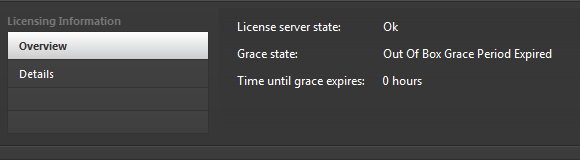
With Citrix Director 7.6, we can now monitor the Citrix license alerts from the Dashboard view. This new capability provides greater visibility into the licensing state of XenApp/XenDesktop to administrators.

In previous versions of XenApp and XenDesktop, if the correct licenses are not installed, users will get session rejections via the license policy engine. To avoid this limitation, Citrix introduced a new concept called Supplemental Grace Period (SGP) in XenApp/XenDesktop 7.6.

During the SGP, the license policy engine will grant unlimited connections, for about 15 days to allow for fixing the issue. An alarm is activated when the grace period expires, and the Delivery Controller can not checkout licenses to launch sessions from license server. SGP will be granted for overconsumption of licenses, i.e., there is no limitation in Citrix user count, whatever the concurrent user license we have. After the expiration of SGP, regular license limits are enforced.

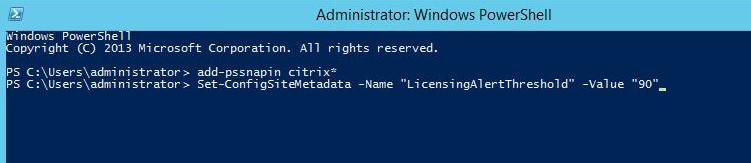
Administrators can set a threshold for license usage. If the licenses consumed exceed the set threshold value, an alert will be generated and shown in the Licensing Server panel in Director. The default value OOB is set at 90% however it can be configured on the Delivery Controller by running the following XenDesktop PowerShell command to set a custom threshold.

Set-ConfigSiteMetadata – Name “LicensingAlertThreshold” –Value “90”

If the Citrix License server version is older than v11.12.1, the Controller cannot checkout licenses, as License server is incompatible. No alerts will be shown.

Posted in Citrix XenApp | Leave a comment

Citrix XenApp 6.0 and 6.5 Reboot Policy in Windows Registry

We can enable the reboot settings through Citrix policies in Active Directory Group Policy Objects (GPO) or in the Delivery Services Console (DSC). This results in some registry settings being added to the XenApp server under

HKLM\SOFTWARE\Policies\Citrix\IMA\Restart Options\Schedule:

RestartSchedule_Frequency -Frequency of scheduled reboots (in days)
RestartSchedule_Date -Reboot schedule start date, from the policy setting (in format of YYYY\DD\MM)
RestartSchedule_Minutes -Time of reboots. Its the decimal value, minutes past midnight, that the reboot is to occur.
RestartScheduleEnabled -Are scheduled reboots enabled or not through policy setting

Posted in Citrix XenApp | Leave a comment

Wisely choose between Windows 10 Long-Term Servicing Branch (LTSB) and a Current Branch (CB) version

Windows 10 uses a new approach to providing updates to users. Traditionally Microsoft would release a version of Windows and then provide updates such as security and bug fixes, but not add any major, new functionality. Every few years Microsoft would release a new version of Windows that contains updates and new features but this meant customers would always have to wait years for new functionality. With Windows 10, Microsoft is giving users greater choice in how they receive new features with the introduction of a long-term servicing branch (LTSB) and a current branch (CB) version.

The LTSB is similar to how versions are delivered today with a new one delivered every couple of years and in between each new version Microsoft will provide security updates, bug fixes and so on. Alternatively, customers can choose to use the CB method which provides security updates, bug fixes, and new features every few months.

When each LTSB is released it will converge with the currently existing CB, allowing customers to transition from CB to LTSB, in the event they decide they noo longer want to receive updates so frequently. Customers using LTSB will be able to upgrade between LTSB builds and likely one additional time prior LTSB (current Windows 8.1 would count as a LTSB). This is better visualized in the image below.

Posted in Citrix XenApp | Leave a comment