Citrix SMA Service not starting

If SMA service could not be started and getting the below error message:
“The Citrix SMA Service service on Local Computer started and then stopped. Some services stop automatically if they have no work to do, for example, the Performance Logs and Alerts service.”

Resolution 1:

Active folder would be missing. Copy the Active folder ”C:\Program Files\Citrix\SMA\Active” from another server and then start the service.

Resolution 2:

To resolve the preceding issue, complete the following procedure:

•Stop the SmaService.exe service by using the Task Manager.
•Citrix SMA Service Properties and under the Log on tab, select Local System Account.
•Set the SMA  Service to Manual and restart it, once the service started.
•Change Citrix SMA Service Properties and under the Log on tab, select Local Service Account.
•Set the SMA  Service to Automatic and restart it.

Resolution 3.

Stop IMA service (Kill both IMASRV and IMAAdvanceSRV) and SMA services (SmaService).
Run “dsmaint recreatelhc”
Start IMA service and then SMA service.

Posted in Citrix XenApp | Tagged , , , , | Leave a comment

Citrix License Usage: LMSTAT

To quickly find the count of citrix licenses used run the following command:
C:\Program Files\Citrix\Licensing\LS>lmstat -a | find /i “licenses”

If lmstat -a results in the fillowing error do the following:
lmpath location: “C:\Program Files\Citrix\Licensing\LS”

First, make sure you point first to your citrix_startup.lic file  Run the following command:
lmpath -add CITRIX “C:\Program Files\Citrix\Licensing\MyFiles\citrix_startup.lic”

After you run the above lmpath -add command, drop any additional license files in the  C:\Program Files\citrix\Licensing\MyFiles directory.
Note: you can manually add any additional files if you want by running the following: lmpath -add CITRIX “C:\Program Files\Citrix\Licensing\MyFiles\1.lic;C:\Program Files\Citrix\Licensing\MyFiles\1.lic”

If you recieve any of the following errors: First check citrix_startup.lic is in your lmstat path, if not add it.
Error: (CITRIX) DENIED: “MPS_ENT_CCU” MPS@server.domain.net  [FECC5FE3] (License server system does not support this version of this feature. (-25,334)) (CITRIX) DENIED: “MPS_ENT_CCU” MPS@server.domain.net  [FECC5FE3] (No such feature exists. (-5,341))  Errors above retrieved from –> C:\Program Files\citrix\Licensing\LS\lmgrd_debug.log Note: restart citrix licensing service to recreate the lmgrd_debug.log file.

The “lmstat -a” command should now be fixed and ready to run.

Citrix LMSTAT.exe context:
C:\Program Files\Citrix\Licensing\LS>lmstat /?

Posted in Citrix XenApp | Tagged , , , , | Leave a comment

Preboot Execution Environment (PXE)

Preboot Execution Environment (PXE) is a protocol that enables a client machine to boot from its network interface and connect to a server resource on the network to retrieve a boot-file program and load an Operating System. When a workstation start with PXE boot, the PXE client sends a DISCOVER packet (broadcast) to the entire domain to search for a DHCP server to get an IP address. If it doesn’t find one, it tries a few times and then it times out. In Citrix PVS technology the target device is just a PXE-enabled machine. In most of the subnetted network the target device fails to obtain an IP while DISCOVER and cannot reach a DHCP server where PVS targets are on one physical segment and DHCP resources are on a another one. Because of a limitation in PXE, the broadcast packet never reaches the other segments. So to overcome this issue there is a feature called DHCP Relay (also known as IP Helper for specific vendors) that can be enabled with a simple command on the router in order to make it “listen” to PXE packets and “relay” them to the next-next subnets until they reach a DHCP destination.

Posted in Citrix | Tagged , , , , , , , , , , | Leave a comment

Get alert email when an event occurs and logged in the event viewer

Scenario: We need to get an email when an event occurs and logged in the event viewer. The mail should contain the contents of the event log entry.

In this example, I am using Event ID 137 on a Windows Server 2008 R2 while taking Backups.

First, find the event in the event log.


E1

Click “Attach Task To This Event…” in the right side task pane and proceed with the wizard. We can give a name for the task “the event name in the server”. On the Action page, select send an email. On the send an email page, provide From/To/Subject/Text and SMTP server. So we can’t specify what comes in the body of the email. But we can include a specific attachment, which is not our requirement.

E2

Now go to task scheduler, Task Scheduler Library and then to Event Viewer Tasks, we can find a new item. There is no way to include the text of the event log in the message.

So to get the last instance of event 137 logging in the System event log use the command wevtutil. Run the below command to see all the event details on one line.

wevtutil qe System “/q:*[System [(EventID=20274)]]” /f:text /rd:true /c:1

So create a batch file, query.cmd and saved it on my desktop which will get all event details.

del %temp%\query.txt
wevtutil qe System “/q:*[System [(EventID=20274)]]” /f:text /rd:true /c:1 > %temp%\query.txt

Now go to the properties of the task and click Actions tab. Add an item to run this batch file and place it on top of the list.

E3

Now go to the properties of the “Send an e-mail” option. Find there is an “Attachment” setting and now we have a file which contains the information at %temp%\query.txt. Simply put “C:\Users\admin\AppData\Local\Temp\query.txt” in that box. (Replace the username/location as appropriate). So if the event happens and logged in the event viewer we get the email like what we wanted! Hope this helps many of us…


Posted in Citrix | Tagged , , , | Leave a comment

Configuring Citrix Director 7.6 for XenApp 6.5

Citrix has brought back IMA Support  to allow users to troubleshoot XenApp 6.5 (IMA) sessions with enhanced features in Director 7.6. In addition to providing a short list of the available features of Director 7.6 with IMA architecture

Features:

  • Activity Manager for XenApp 6.5
  • Delegated Admin support
  • Shadow Session
  • Machine Details Panel
  • Session Details Panel
  • Personalization Panel
  • HDX panel

Global User Session Search across XenDesktop Sites and XenApp farms:

Director 7.6 now helps administrators search user sessions across XenDesktop sites and XenApp farms. This feature allows admins to get all the sessions for users in one search session.  We’ve also made it convenient to switch between the sessions quickly.

Note:  Director 7.6 supports three types of search: user, machine and endpoint search. XenApp sessions are supports only “user” search.

1

[Director Session Chooser showing sessions across XD/XA Sites and XA (IMA) Farms]

Activity Manager:

Director 7.6 will now display different applications and list the processes running on a XenApp server for a user session imitating the Windows task manager. As an administrator, you can close an application or kill the process remotely. One of the primary use cases to help diagnose slow applications is when a user calls the helpdesk complaining that session interactions are slow.  Now administrators can drill down to a process that is consuming high resource and kill it freeing up much needed resources.

2 [Director Activity Manager: Application and Process View]

Delegated Admin Support:

Director 7.6 supports XenApp delegated administrators in addition to the full administrator role. Full Admin, View Only Admin and Custom Admin are the types of administrators supported with the Delegated Admin Support feature. Permissions for each admin type can be configured (see the product documentation).

Director 7.6 now enables admins to shadow user sessions. This feature helps administrators quickly diagnose issues and get a direct look into  user sessions.  Admins have also been provided with access to applicable controls. To activate this feature, Microsoft Remote Assistance should be enabled in XA Server. Here is the link that will help you install and enable Remote Assistance on Windows Server 2008 R2.

3[Director Shadow Session: Picture illustrates the ease of having a peek to user session]

Director Pages that are shown for XenApp

Activity Manager View:
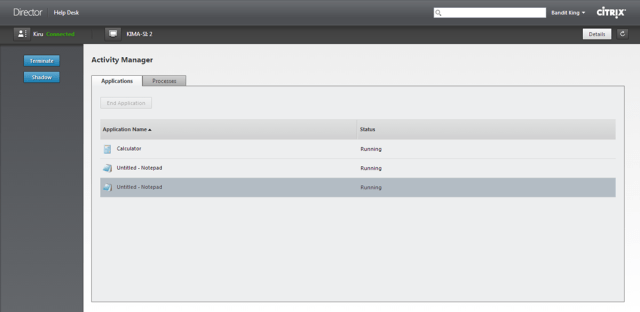
4

This view gives the basic insight into the applications and process running on the user session. It contains the “terminate” and “shadow” buttons, helping the admin perform basic control operations.

User Details View:

The User Details view gives a bird’s eye view of the user session. This view displays complete information about the user session such as session machine details, the farm name, and the machine OU. It also helps find the client machine name and IP from which the session was launched, the session state and the total time for the session on current state.

5

The personalization panel allows us to easily locate the user profile. The Logon duration panel shows the logon time (Although the logon duration chart is not shown for XenApp Sessions). Finally, the HDX panel shows the status of each HDX channel. To get additional troubleshooting details, the administrator can click on any of the channel icons.

Installing WMIProvider on XA Server:

In order for Director to retrieve data from XA 6.5 server sessions, the administrator will need to install a WMIProvider on XenApp 6.5 server. This can be found in the DVD folder /support/DirectorWMIProvider. Once this is installed, check to make sure that the WinRM is enabled. This can be done by running the command, Winrm qc.

The expected output is:

C:\ > winrm qc
WinRM service is already running on this machine.
WinRM is already set up for remote management on this computer.

Configuring WinRM permissions on XA server:

In order for Director to retrieve the information from the XA server, it is necessary to enable WinRM permission for administrators. These details are explained in our edocs . We have two types of permissions:

1. To get the information from the XA server on Director. This can be achieved by running the following command :

ConfigRemoteMgmt.exe /configwinrmuser domain\name
ConfigRemoteMgmt.exe /configwinrmuser domain\HelpdeskUserGroup

2. To enable operations on the session. The operations are actions such as end application, end process, etc. This can be achieved by running the following command:

ConfigRemoteMgmt.exe /configwinrmuser domain\name /All
ConfigRemoteMgmt.exe /configwinrmuser domain\HelpdeskUserGroup /All

How to Configure XA server in Director 7.6

After installation, open command prompt on the Director Server. Enter following command:

C:\inetpub\wwwroot\Director\tools\DirectorConfig.exe /xenapp <XenAppServerDnsName>

Once the tool runs successfully, Director is ready to troubleshoot your XenApp 6.5 user sessions

Posted in Citrix XenApp | Leave a comment