Types of Host Pool and Load Balancer

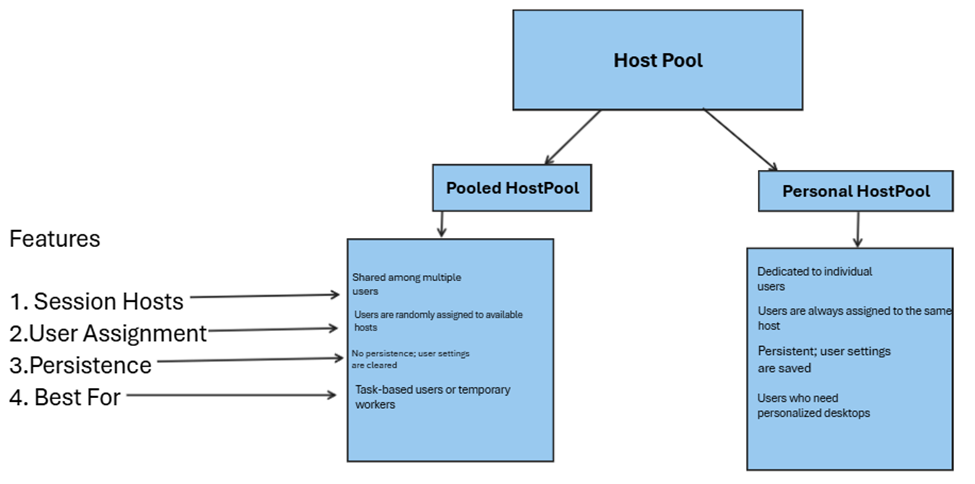
Types of Host Pool:

Image: Host Pool Types

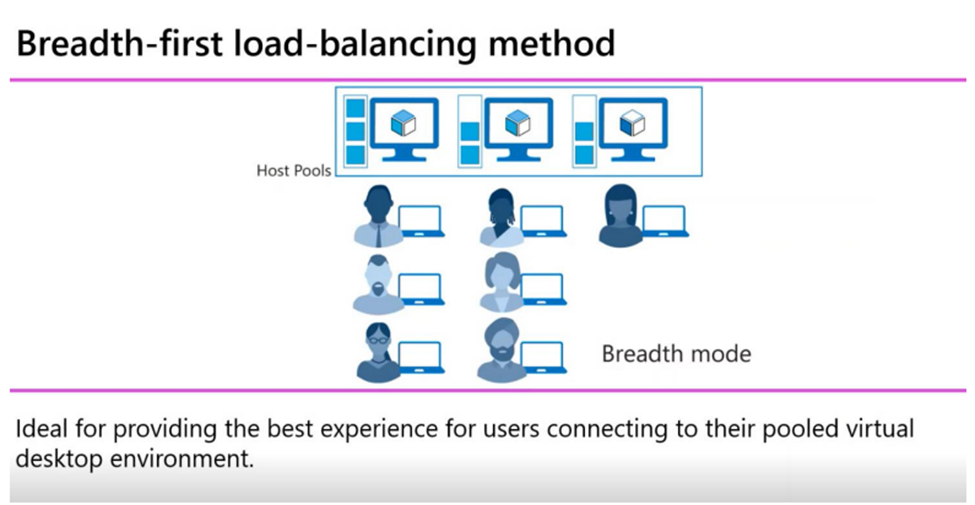
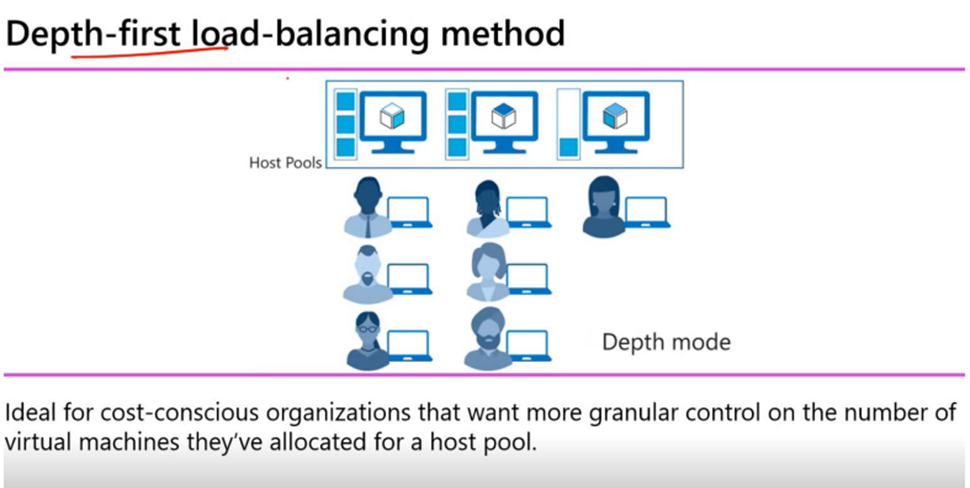
Load Balancer in Host Pool: In simple terms, the Load Balancer in a Host pool helps to distribute user connections across multiple session hosts (VMs) to efficiently use the resources and for smooth user experience. This option is only available if we selected Pooled Host Pool.

Types of Load Balancing Algorithms in AVD:

1. Breadth-first (default):

o How it works: Users are distributed evenly across all available session hosts in the hostpool. When a user connects, the load balancer assigns them to the first available host.

o Best for: Scenarios where all VMs to be equally utilized.

2. Depth-first:

o How it works: Users are directed to a session host until it reaches the max number of users allowed in the session host. Once a session host is full, the next available session host is used.

o Best for: Scenarios where we want to use the same VM for a group of users. It is useful for persistent sessions (such as in a personal host pool).

Posted in Azure AVD | Tagged , , , , | Leave a comment

Basics of AVD Host Pool and Terminology

AVD: AVD is a cloud-based service from Microsoft that allows businesses to deliver virtualized desktops and applications to users, accessible from anywhere in the world, as long as they have an internet connection.

Terminology:

1. Host Pool: Host Pool is a collection of virtual machines (VMs) that provide virtual desktops or applications for users to connect to, either as shared or personalized desktops.

2. Application Groups: Application Groups in Azure Virtual Desktop are containers that organize and manage the apps and desktops that users can access.

There are two types:

RemoteApp: Allows users to access specific applications without the full desktop experience.

Desktop: Provides users with access to a full virtual desktop.

They help admins to assign and manage access to apps or desktops for different groups of users.

3. Workspace: Workspace in Azure Virtual Desktop provide users with a centralized access point to their virtual desktops and applications. Without Workspace, users wouldn’t have an easy way to find or launch the resources they needed. The Workspace organizes and simplifies the user experience by grouping all the assigned desktops and apps in one place, making access more efficient and streamlined.

Note: An application group can only be assigned to a single workspace.

4. Session Host: session hosts are the VMs that run the apps and desktops, and users interact with them based on how they’re set up—either shared or dedicated to them.

Difference between Host pool and Session Host:

Host Pool: The collection of VMs (session hosts) that users connect to.

Session Host: The individual VM that provides the desktop or application experience to a user.

In short, a Host pool is a container for multiple session hosts, and the session host is where the user’s virtual environment runs.

Posted in Azure AVD | Tagged , , , , | Leave a comment

Certificates in Citrix Delivery Controllers

There are two types of certificates that has to be updated or renewed in Citrix Delivery Controllers

Update the Thumbprint after Server certificate renewal in Citrix Delivery Controller

To secure Broker Service traffic in Delivery Controller we need to install the server certificate. We need to update the thumbprint and bind the new SSL certificate after renewing the certificate in Citrix Delivery Controller. The appid has to be same in all the Citrix Delivery Controllers in the site. Certificates created by the certification authority MUST contain private key (PKCS #12 [*.PFX])

1. Install the certificate in the Personal folder.
2. Check the Thumbprint of new certificate by using below command
dir cert: \localmachine\my
3. Check the application ID using below command
gwmi win32_product | where name -eq “citrix broker service”
4. Check the existing thumbprint using below command and note down the existing certhash and appid
netsh http show ssl
5. From the new certificate, locate thumbprint and make a note of that value which is the certificate hash number. Note: Make all letters in capital and without space.
6. Delete the existing ssl certificate using below command
netsh http delete sslcert ipport=0.0.0.0:443
7. Run the below command with new thumbprint certificate hash number and application ID.
netsh http add sslcert ipport-0.0.0.0:443 certhash-Certificate Hash Number appid='{Citrix Broker Service APPID}’
8.Run the below Command again to verify the new thumbprint
netsh http show ssl

Update Thumbprint in Citrix Delivery Controllers After Certificate Renewal in VCenter

To secure the communication between Delivery Controller and the vCenter, we need to update Thumbprint of the Center SSL Certificate in Citrix Delivery Controller. The SSL Certificate Thumbprint of the vCenter Hypervisor connections are stored in the SQL table
“HostingUnitServiceSchema.HypervisorConnectionSSLThumbprint” with in the Xen Desktop site database.

1. Get the new SSL certificate thumbprint from the vCenter and make all letters to capital letter and without space.

Example: New Certificate Thumbprint
7EBABCECEB3973F72B4307682C62F057C8A3B6

2. Run the command to find the VCenter connection name
Get-Item XDHyp://connections/*

Example: VCenter Connection Name
ctxvcp01-desktops

3. provide the service account credential used to connect the VCenter in the below command
$cred – Get-Credential

4. Run the below command with vCenter connection name, new thumbprint and the VCenter URL to update the new thumbprint.
Set-Item -LiteralPath “XDHyp: \Connections\ctxvcp01-desktops ” -username $cred.username -securepassword $cred.password -sslthumbprint “7EBABBCECEB3973F7284307682C662F057C8A3B6” -hypervisorAddress https://ctxvmwarevc.myxenapp.com

Posted in Citrix | Tagged , , , , , , , , , , , | Leave a comment

Steps To Upgrade NetScaler ADC Firmware From 13.0 to 13.1

While upgrading _NetScaler version from 13.0 to 13.1 we need to convert the classic polices to advance polices as it is not supported by NetScaler v 13.1

Before that take full backup of the both primary and secondary NetScalers and also take the backup if you have a customized theme. Especially during this upgrade take backup of httpd.conf and ns.conf and save it in the local machine.

Difference between Classic polices and Advance polices.

1. Any expression starts with REQ comes under classic polices
2. Any policies contain == comes under classic policies
3. Advance polices start with HTTP
4. Advance polices contain EQ and Brackets

Use the NSPEPI tool to convert from classic to advance policy.
1. Login to primary node through Putty and run the following command to convert policy.

nspepi -f /nsconfig/ns.conf

2. Once converted the policy (ns.conf config file), we can see the converted file as a new file with a prefix, ‘new’.

3. The warnings and error file has the same name as input file but with a prefix ‘warn_’ added to the file name.

Verify the warning before upgrading the ADC. If warn.conf file only contains the warning for
compression polices then we can ignore as compression polices not required to convert to
advance. Other policies should be converted successfully before proceeding. Contact Citrix support if you get warning or error in converting other policies.

Once polices are converted, copy the new_ns.conf then rename the existing ns.conf as
ns_old.conf. Rename new_ns.conf as ns.conf.

Then reboot the NetScaler for polices to take effect.

4. Take back up of the customized portal theme from the path: /var/netscaler/logon directory.

Steps to upgrade the NetScaler

1. To upload the software to the Citrix ADC with WinSCP.
2. Create a directory for new build version under /var/nsinstall (e.g. /var/nsinstall/Build)
3. Copy the software from your computer to the /var/nsinstall/B uild directory in the NetScaler.
4. Use Putty to open an SSH connection to the appliance.
5. At the command prompt, type shell.
6. Type cd /var/nsinstall/build-13. 1-xx. xx_nc_64 to change to the nsinstall directory
7. To unpack the software, type tar – zxvf build-13.1-xx.xx_nc_64.tgz
8. To start the installation, type ./installns
9. NetScaler will reboot once the installation is completed, To verify the version type, Show ns version

Try to access the GUl Console of your NetScaler ADC, if GUl is not working then follow the below steps. Check the Citrix article CTX277615 for more details.

1. Backup the existing httpd.conf from /nsconfig directory of Primary.
2. Delete the /nsconfig/httpd.conf file from Primary.
3. Delete the the /nsconfig/httpd.conf from Secondary.
4. Reboot the Secondary appliance.
5. After reboot, failover to the secondary appliance and then reboot the old primary.

Or follow the below steps

Take the backup of httpd.conf file from “/nsconfig/httpd.conf” location and delete the “httpd” file from nsconfig location and etc location.
Now edit the httpd file location and replace the libphp7.so to libphp.so in httpd.conf file and save it.
Now place the httpd.conf file in etc and nsconfig location to fix the issue. Reload the GUI page to access the NetScaler console.

Posted in Citrix | Tagged , , , , , , , | Leave a comment

Amazon uses Xen Virtualization

In Amazon Web Services (AWS), Amazon Elastic Compute Cloud (EC2) instances are the central part of cloud computing platform. An instance type determines the hardware of the machine. Each instance type provides different compute and memory capabilities. Amazon Machine Image (AMI) provides the set of software for the EC2 instance including the kind of OS, applications, the services.

So Amazon EC2 facilitates the scalable deployment of desired software and applications by providing a web service for the virtual machine, called as an instance.

Amazon EC2 relies on Xen Virtualization for launching its instances.

A Xen hypervisor allows multiple instances to share a single hardware platform. A hardware on which a hypervisor is running is called a Host machine and the virtual machine is called a Guest machine.

AWS supports two different types of virtualization for EC2 instances, Para Virtualization (PV) and Hardware-assisted Virtual Machine (HVM).

In terms of Xen virtualization these are called

  1. Xen Para-virtualization ( PV )
  2. Xen Full virtualization ( HVM )

a. Para-Virtualization

These AMIs boot with a special boot loader called PV-GRUB. The guest kernel can communicate directly with the hypervisor results in greater performance but they cannot access or use the hardware extensions such as enhanced networking, GPU etc. Network performance in a Para-virtualized instance is very low. Para-virtualized AMIs support only Linux.

b. Hardware-assisted virtual machine or (Full Virtualization)

HVM instances have a fully virtualized set of hardware and they boot by executing the master boot record (MBR) of the root block device of the image. It provides the ability to run an operating system directly on top of a virtual machine. It provides complete hardware isolation. HVM instances can use the enhanced networking and GPU processing. HVM virtualization provides guest OS to pass through instructions to specialized network and GPU devices to have access to the native hardware platform. The network performance in Hardware-assisted virtual instance is low to moderate. The hardware provides support to run independently for each Guest OS. So the HVM AMIs support both Linux and Windows.

HVM machines can take advantage of hardware extensions that provide fast access to the underlying hardware on the host system.
PV drivers are now available for HVM machines, so with these drivers the HVM machines get the better performance than para virtual machines.

Posted in Citrix XenApp | Tagged , , , | Leave a comment