Peering Azure VNETs Across Regions

Azure Virtual Network (VNET) Peering allows you to connect two or more VNETs privately through the Azure backbone network, enabling low-latency, high-bandwidth communication between resources in different VNETs—without going over the internet.

Regional And Global Peering in Azure

Key Points:

  • Traffic flows over Azure’s private backbone, not the public internet.
  • Peering can occur across different Azure subscriptions.
  • Peering can be: Regional (within the same region) & Global (across different regions)
  • Ensure IP address spaces do not overlap between peered VNETs.

Communication between subnets within the same VNET is allowed by default. Azure automatically creates system routes that allow communication between subnets. There’s no need for peering between subnets in the same VNET. All subnets in a single VNET are part of the same IP address space.

NOTE: Use Network Security Groups (NSGs) to block or allow traffic between subnets

However, subnets in different VNETs cannot communicate unless peering is enabled.

Regional Peering Example

Subnet 1 (S 1A) and Subnet 2 (S 2A) within the same VNET (VNET A) can communicate with each other by default. However, they cannot communicate with Subnet 1 (S 1B) or Subnet 2 (S 2B) in a different VNET (VNET B), even if both VNETs are in the same region.

Once peering is enabled, they can communicate over the Azure backbone. This setup is called Regional Peering.

Global Peering Example

  • VNET B (US-West)
  • VNET C (US-East)

If these are peered, it’s called Global Peering as the VNETs are in different Azure regions. So, now S 1B and S 2B can communicate to S 1C.

Can VNET A communicate with VNET C?

No, VNET A cannot directly communicate with VNET C based on this setup, because:

  • VNET A is peered only with VNET B via Regional Peering.
  • VNET B is peered with VNET C via Global Peering.
  • VNET Peering is not transitive, meaning just because A is peered with B and B is peered with C, A and C cannot communicate unless they have a direct peering relationship.

VPN as an Alternative

You can use a VPN Gateway to enable communication between VNETs or between VNET and on-premises networks.

However:

  • Traffic flows through the public internet.
  • Higher latency and more complexity.
  • Requires a VPN Gateway in each VNET.

Recommendation: Use VNET Peering whenever possible for low latency, security, and cost-efficiency.

Hub-and-Spoke Model (for VPN) To reduce complexity:

  • Create Hub VNET.
  • Install the VPN Gateway in the Hub.
  • Peer spoke VNETs to Hub.
  • The Hub can then connect to on-premises.

Example with VPN and HUB -Spoke Architecture

Explanations:

Architecture Explanation

🌐 1. On-Premises Network

  • Located outside Azure (your physical or corporate datacenter).
  • Has a server: btadc01 with private IP
  • Connects to Azure via a Site-to-Site VPN using IPSec IKE tunnel.
Posted in Azure AVD | Leave a comment

RollBack from OS Disk Snapshot in AVD

If a virtual machine (session host) in AVD environment encounters issues, we can roll back to a previous state using Azure VM snapshots.

Steps to Take a Snapshot

  1. Go to Azure Portal → Navigate to Virtual Machines.
  2. Select the AVD (session host) you want to snapshot.
  3. Under Disks, choose the OS Disk.
  4. Click Create Snapshot → Fill in details like name and storage type.
  5. Click Review + CreateCreate Snapshot.

Created an AVD as a Gold Image to test snapshot rollback. Now, create a folder named ‘Test-snapshot-C-drive” in the C drive of  the Gold Image to check if the data gets deleted after rollback.

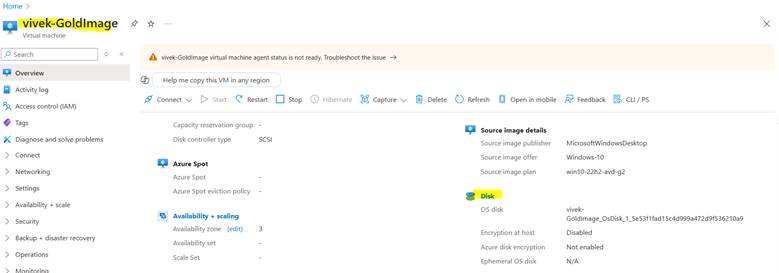
Select ->Disk

Now we can see the OS Disk details, please select again disk name to expand the details.

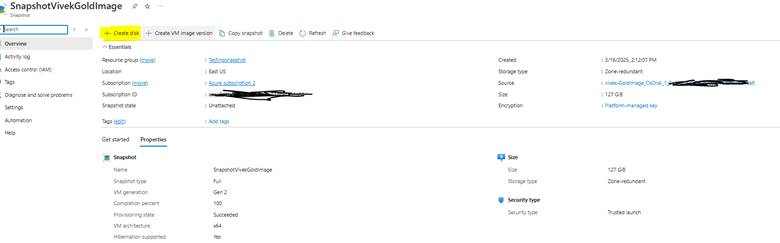
To take the snapshot, select the “Create Snapshot

Fill the details of Snapshot.

Snapshot Type Best Use Case
Full (Default) Best for full backups. Stores entire disk contents.
Incremental (Recommended) Saves only changed data since last snapshot (cheaper and faster).

Once snapshot created. Create the disk from snapshot.

Fill the details for disk.

Once disk created. Now, we can create the AVD from the disk.

By default, Image will be select as your disk

Deleted the Original AVD Gold Image after creating Disk and Validated the Test folder is available in C drive.

Posted in Azure AVD | Leave a comment

Steps to create Gold image/Master Image in Azure and store in Azure Compute Gallery:

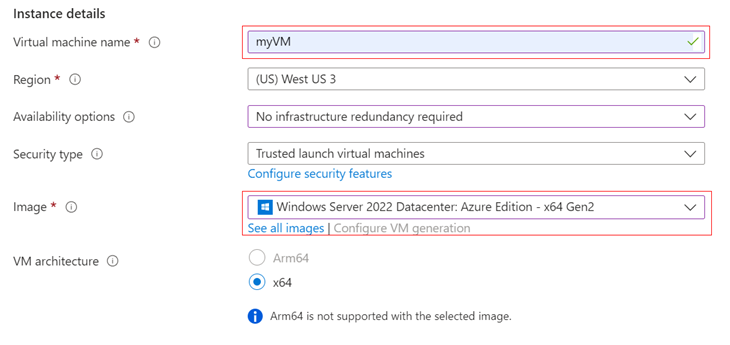
Step 1: Create a Base Virtual Machine:

• Go to Azure Portal → Virtual Machines → Click Create VM.
• Select a Windows OS for the Image (e.g., Windows 11, Windows 10 Multi-Session, or Windows Server from Azure Market place).
• Choose VM size (e.g., D-series for AVD workloads).
• Configure networking
• Click Review + Create and wait for deployment.

Important Note: We can use either Generation 1 or Generation 2 VMs; Gen 2 VMs support features that aren’t supported by Gen 1 machines.
Learn more about Generation 1 and Generation 2 VMs at Azure support for Generation 2 VMs – Azure Virtual Machines | Microsoft Learn

Step 2: Take the first snapshot of the VM

Once deployed the image, take a snapshot of the disk of the image VM.

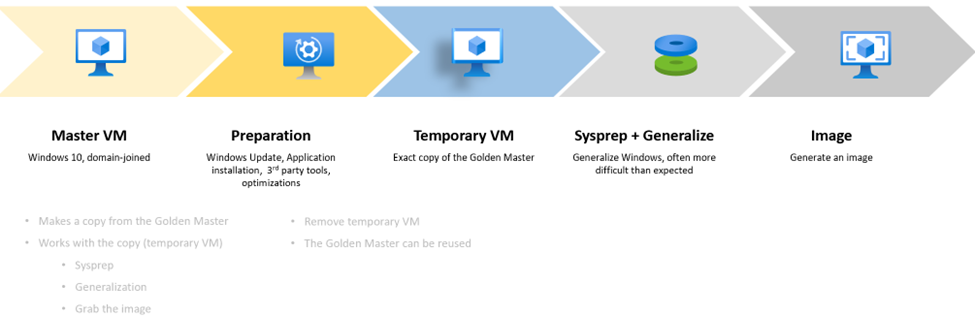
Taking a Snapshot will not delete the VM. A snapshot is just a backup of the disk. The VM remains untouched. Capturing an Image will delete the VM in Azure, if it is generalized. 

Step 3: Customize the VM
Sign in to the VM and start customizing it with apps, updates, and other things you’ll need for your image. If the VM needs to be domain-joined during customization, remove it from the domain before running sysprep.

Before taking the final snapshot:
• Install the latest Windows updates.
• Complete any necessary cleanup, such as cleaning up temporary files, defragmenting disks, and removing unnecessary user profiles.

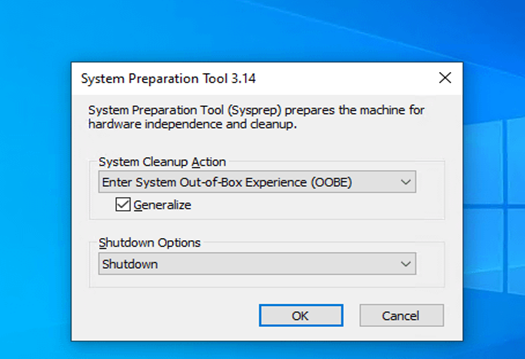
Location for Sysprep: C:\Windows\System32\Sysprep\Sysprep.exe

Sysprep: This will remove all your personal account and security information, and then prepares the machine to be used as an image.

Important Note: Disable the antivirus programs before running sysprep.
The process of generalizing a VM is not reversible. Sysprep requires the drives to be fully decrypted. So disable encryption before running Sysprep.

Step 4: Capture the VM
After completing the sysprep and shut down the machine in the Azure portal, open the VM tab and select the Capture button to save the image for later use. When we capture a VM, we can either add the image to a shared image gallery or capture it as a managed image.

Using Azure Portal:
1. Go to Virtual Machines → Select your VM.
2. Click Capture (under “Operations”).
3. Choose “No, generalize” since we already ran Sysprep.
4. Select a Compute Gallery or create a new image.
5. Click Review + Create.

If we need to store the image in “Azure Compute Gallery” then you need to create Target VM definition before capture the image of Gold VM.

Managed Image is best for small-scall VM Deployment and does not require image definition. Azure Compute Gallery Image is best for large scaling and multi-region AVD.

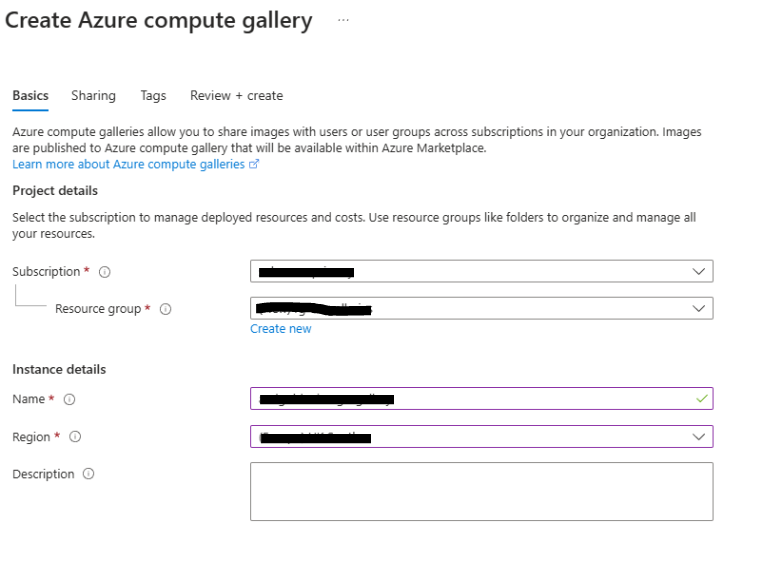
Steps to Create New Azure Compute Gallery:

Go to Azure Portal → https://portal.azure.com
Search for “Azure Compute Gallery” and click Create

Enter the following details:
Subscription: Choose your subscription
Resource Group: Select or create a new one
Gallery Name: Example: MyImageGallery
Region: Choose where the gallery will be stored
Sharing Method:
Private (Default) – For your subscription
Community – Share publicly
Direct Subscription – Share with specific subscriptions

Click Review + Create → Create

Steps to Create New Image Definition:
An image definition acts as a template for all image versions inside an Azure Compute Gallery. It defines the OS type, offer, and SKU for your images.

Go to Azure Portal → https://portal.azure.com
Search for “Azure Compute Gallery” → Select your Gallery
Click + Create Image Definition
Enter the following details:
Subscription: Select your subscription
Resource Group: Choose an existing one or create a new one
Gallery Name: Select your existing Azure Compute Gallery
Image Definition Name: Example: Win10MultiSession
Operating System: Choose Windows or Linux
VM Generation:
Gen 1 – Legacy VMs
Gen 2 – Supports larger VM sizes, Secure Boot, TPM
Publisher
Offer: Example: Windows10Enterprise
SKU: Example: Win10-MultiSession
OS State:
Generalized – For reusable images
Specialized – For pre-configured, user-specific images

Click Next → Review + Create → Create

Posted in Azure AVD | Tagged , , , , , , , | Leave a comment

Migrate On-premises Citrix Configuration to Citrix Cloud with ACT

Citrix Automated Configuration Tool is used to migrate the on-premise Citrix configuration to Citrix DaaS environment. The Citrix Automated Configuration Tool can also migrate information between public cloud regions or tenants. It is used to automate the migration of CVAD configuration like policies, applications, catalogs, admin roles, scopes and others from one or more on-premises sites to Citrix DaaS hosted on Citrix Cloud.

Steps to export the configuration from on-premises Citrix environment

  • Install ACT on the 1912 LTSR DDC.
  • Connect to on-premise DDC.
  • Download the latest version of the Citrix Automated Configuration tool.
  • Install AutoConfiq_Powershell_x64.msi.
  • Confirm that ‘Auto Config’ icon has been created for the ACT on the desktop.
  • Export the Configuration from the on-premise DDC.
  • Connect to the on-premise DDC and open the Auto config icon from the desktop.
  • Run Export-CvadAcToFile
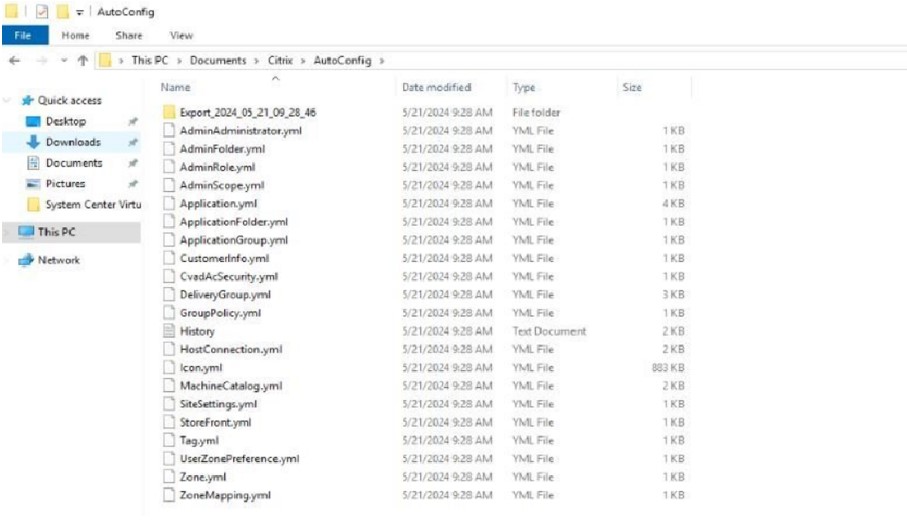
  • It exports the on-premises configurations to YAML files (Customerinfo.yml, ZoneMappinging.yml, CvadAcSecurity.yml)
  • Exported YAML files are placed in the directory c:\users\myusername\Documents\citrix\AutoConfig.
  • An HTML file called ‘ Automated configuration Tool Log’ will provide details of the export process, including a summary of the components exported to YAML files.
  • The Fixups section of the log file shows details if an import or merge fails.

Note:
All exported files are placed in two folder locations, providing ease of use and a history of exports. Exports are always placed in the root folder. Copies are placed in a subfolder named ‘Export’ with the date and time of the export. The root folder always contains the most recent exported on-premises site configuration. Each ‘Export’ subfolder includes the export done on the indicated date and time, which maintains a history of exports.

Steps to import the configuration to Citrix Cloud

Make sure the prerequisites are ready in Citrix Cloud.

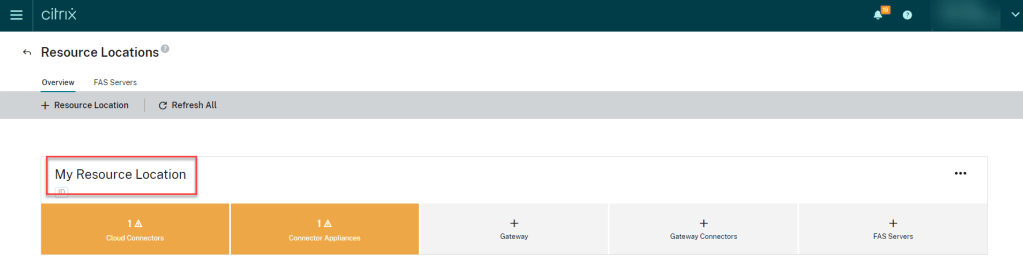
In the Resource Location the Cloud Connectors should be in green and we should have Customer ID, Client ID, and Secret Key

To get the Customer ID, sign into your Citrix Cloud account and select the customer.
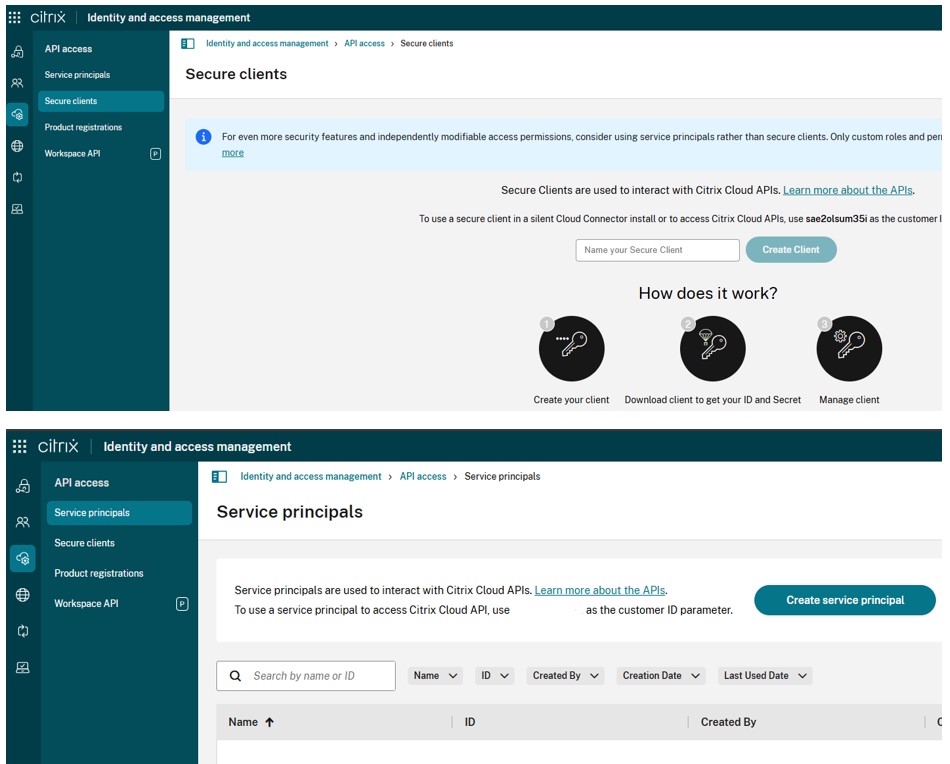
To get the Client ID and Secret Key, go to select Identity and Access Management, click the API Access tab.
Create the client ID and the secret key and save the detail separately. We can also download the information.

Copy the YAML files to the same location c:\users\myusername\Documents\citrix\AutoConfig in the Cloud Connector machine to import settings to the Citrix Cloud.


First, open CustomerInfo.yml file and update Customer ID, Client ID and Secret ID.
Then open ZoneMapping.yml. If we have only one default Zone, name Primary then we no need to update this file in the source location. Else update the Zones information.
In the destination ZoneMapping.yml file, the Name_Of_Your_Resource_Zone value must be replaced with Cloud Resource Location name.

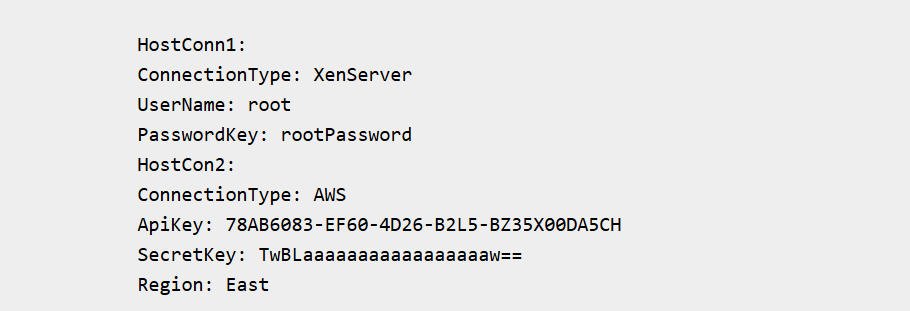
Then update the CvadAcSecurity.yml file. Host Connections and their associated hypervisors can be migrated to Citrix DaaS. Adding the Host Connections requires security information for the specific hypervisor. Update the username and password for the hypervisor connection.

After updating the YAML files, open Migration tool PowerShell console. Merge the existing Cloud configuration (if any exists) with the configuration exported from the On-Premises site with the command Merge-CvadAcToSite.

We can also run the command Import-CvadAcToSite -Applications $true, as it also merges the configuration by default. We can see the output as green after successfully running each task and YAML files are imported, and the corresponding components are added to the Citrix Cloud site.

Posted in Citrix | Tagged , , , , , | Leave a comment

Steps to Create a Host pool in Azure For AVD Deployment

Steps to Create a Host pool in Azure GUI Mode

1. Login to the Azure Portal: https://portal.azure.com/

2. Search or navigate to “Azure Virtual Desktop” under All Services.

3. Create a Host pool:

A. In the Azure Virtual Desktop blade, select “Host pools” in the left navigation pane.
B. Click on “Add” to start creating a new Host pool.

4. Configure Host pool:

A. Host pool Name: Give Host pool a name.
B. Region: Select the Azure region where the Host pool will reside.
C. Host pool Type: Choose between Pooled or Personal.
D. Validation Environment: Validation host pool allows us to test service changes before they are deployed to prod.
E. Preferred Group type: Desktop / Remote app
F. Max Session Limit: This is only for Pooled Host pools. You can set a limit for concurrent sessions per VM.
G. Load Balancer: You can choose a load balancing algorithm (breadth-first or depth-first). This option is only visible if you are selecting the Pool Desktop group.

5. Click on Next to go to Sessions Host

Select Yes or No to add the Virtual Machine

6. Click on review Workspaces

If we have already created workspace then we can select Yes to register the Host Pool with Workspaces. If we don’t have workspaces then we can select No and later we can register the Host pool.

7. Click on Advance, if we want to enable the Diagnostic setting for the Host pool.

8. Click on Tag if we want to tag.

9. Review and create the Host pool.

Steps to Create a Host pool in Azure CLI Mode

To create a pooled host pool by using the breadth-first load-balancing algorithm and desktop as the preferred app group type, run the following command:

az desktopvirtualization hostpool create

–name <Name>
–resource-group <ResourceGroupName>
–host-pool-type Pooled
–load-balancer-type BreadthFirst
–preferred-app-group-type Desktop
–max-session-limit <value>
–location <AzureRegion>

To create a personal host pool by using the automatic assignment type, run the following command:

az desktopvirtualization hostpool create

–name <Name>
–resource-group <ResourceGroupName>
–host-pool-type Personal
–load-balancer-type Persistent
–preferred-app-group-type Desktop
–personal-desktop-assignment-type Automatic
–location <AzureRegion>

Posted in Azure AVD | Tagged , , , , , | Leave a comment